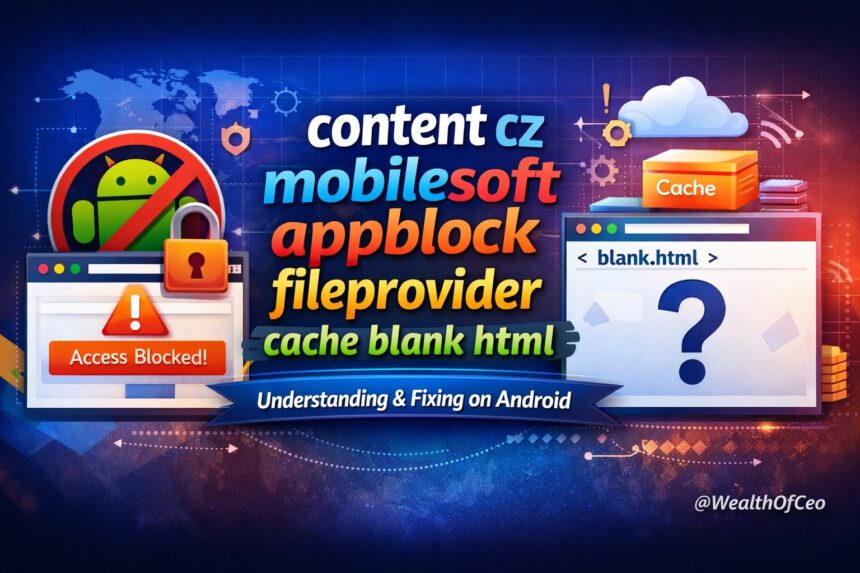
Android users often come across unusual technical strings that seem confusing or even alarming at first glance. One such example is content cz mobilesoft appblock fileprovider cache blank html, which typically appears when browsing is interrupted or a webpage fails to load properly. While it may look like a system error or a sign of something harmful, it is actually linked to how certain apps manage restricted content behind the scenes.
This kind of behavior is usually connected to productivity or app-blocking tools that control access to specific websites or applications. Instead of displaying the intended content, these tools redirect users to a blank page stored internally. Understanding why this happens and what it means can help users quickly identify the cause, avoid unnecessary concern, and take the right steps to restore normal browsing functionality.
What Does “content cz mobilesoft appblock fileprovider cache blank html” Mean?
This long string is actually a structured Android content URI. It is not an error message in the traditional sense, but a path that points to internally stored content. Each part of the phrase has a specific meaning and function within the Android operating system.
The “content://” portion indicates that the system is accessing data through a content provider rather than a direct file path. This method is used by Android for secure data sharing between apps. It ensures that files are accessed in a controlled and permission-based way.
The segment “cz.mobilesoft.appblock” identifies the application responsible for generating the content. This refers to the AppBlock app, which is widely used for blocking apps and websites. The remaining part, “fileprovider cache blank html,” points to a cached blank HTML file used to replace blocked content.
Understanding How Android FileProvider Works
Android uses a component called FileProvider to manage secure file sharing. Instead of exposing raw file paths, apps rely on FileProvider to grant temporary access to specific files. This ensures privacy and prevents unauthorized access to sensitive data stored within apps.
When an app wants to share a file, it generates a content URI. Other apps can then use this URI to access the file without needing full permission to the internal storage. This system is widely used in modern Android apps for safety and compatibility.
In the case of AppBlock, FileProvider is used to serve a cached HTML file. When a website is blocked, the app redirects the request to this internal file. That is why users see a blank page instead of the intended website.
Why You See a Blank HTML Page Instead of a Website
The blank HTML file acts as a placeholder. When a website is blocked, AppBlock replaces the real content with this empty page. This prevents the user from accessing the restricted site while maintaining a smooth browsing experience.
Instead of showing an error like “Access Denied,” the app uses a silent redirection. This approach avoids confusion for some users but can create uncertainty for others who expect to see the actual webpage.
This behavior is especially noticeable when clicking links from search engines or apps. The link appears valid, but the content never loads. The system quietly redirects to the blank HTML file stored in the app’s cache directory.
Common Causes of This Issue on Android
The most common cause is an active blocking rule within AppBlock. Users may have unknowingly blocked specific websites, apps, or keywords. When they try to access these, the app enforces the restriction by redirecting to the blank HTML file.
Another cause is strict mode. This feature prevents users from bypassing restrictions. If strict mode is enabled, even attempts to disable the block may fail, leading to repeated encounters with the blank page.
Cache corruption or outdated app versions can also trigger this behavior unexpectedly. In some cases, the app may incorrectly classify certain websites as blocked, even if they were not explicitly restricted by the user.
How AppBlock Controls Web and App Access
AppBlock is designed to help users stay focused by limiting distractions. It allows users to create schedules, block specific apps, and restrict access to websites. These features are particularly useful for productivity and digital well-being.
The app works by monitoring user activity and intercepting requests to blocked resources. When a blocked item is detected, it prevents access and replaces the content with a predefined response, such as a blank HTML file.
This level of control makes AppBlock powerful but also means that misconfiguration can lead to unintended restrictions. Users may block essential services without realizing it, leading to confusion and disrupted workflows.
Is AppBlock Safe to Use?
AppBlock is generally considered safe and legitimate. It is available on the Google Play Store and used by millions of users worldwide. Its purpose is to improve focus and reduce screen time by limiting access to distracting content.
However, like any app with advanced permissions, it requires careful use. It may request access to usage data, accessibility settings, and device administration features. These permissions are necessary for its functionality but should be granted thoughtfully.
There is no evidence that AppBlock is malicious. The issues users encounter are typically related to how the app is configured rather than any harmful behavior. Understanding its features helps prevent accidental misuse.
What Is Strict Mode in AppBlock?
Strict mode is a feature designed to enforce discipline. Once enabled, it prevents users from modifying or disabling active blocking rules. This ensures that users cannot bypass restrictions during focus periods.
While this can be helpful for productivity, it can also be frustrating. Users who enable strict mode without fully understanding it may find themselves locked out of important apps or websites.
In some cases, strict mode can even prevent the uninstallation of the app. This makes it essential to use the feature carefully and only when necessary. Always review your settings before activating strict mode.
How to Fix the Blank HTML Issue
The first step is to open AppBlock and review your blocking rules. Check if the website or app you are trying to access is listed. If it is, remove it from the block list or temporarily disable the restriction.
Next, check whether strict mode is enabled. If so, you may need to wait until the restriction period ends or use any available emergency unlock options. This depends on how the app has been configured.
Clearing the app’s cache can also help resolve unexpected behavior. Go to your device settings, find AppBlock, and clear its cache. Updating or reinstalling the app may also fix bugs or glitches causing the issue.
AppBlock vs Digital Wellbeing: Key Differences
Android’s built-in Digital Wellbeing feature offers basic tools for managing screen time. It allows users to set app timers, enable focus mode, and monitor usage patterns. However, its blocking capabilities are limited compared to AppBlock.
AppBlock provides more advanced features, including website blocking, scheduling, and strict enforcement. This makes it a better choice for users who need strong control over their digital habits.
However, Digital Wellbeing is safer for casual users. It does not lock users out of their devices or prevent uninstallation. Choosing between the two depends on how much control you need and your comfort level with advanced settings.
When Should You Be Concerned?
In most cases, this issue is harmless and easily fixable. However, you should investigate further if you see similar messages without having installed any blocking app. This could indicate another app interfering with your browsing behavior.
If the problem persists even after uninstalling AppBlock, consider checking for other apps with similar permissions. Some parental control or security apps may use similar methods to restrict access.
It is also important to ensure your device is updated and free from suspicious applications. While rare, unexpected behavior should always be reviewed to rule out potential security risks.
Preventing This Issue in the Future
To avoid encountering this issue again, review your blocking settings regularly. Make sure you understand which apps and websites are restricted. Avoid enabling strict mode unless absolutely necessary.
Keep your apps updated to ensure compatibility with the latest Android features. Developers frequently release updates to fix bugs and improve performance.
Finally, use blocking tools responsibly. While they can significantly improve productivity, improper use can lead to confusion and reduced functionality. A balanced approach ensures you get the benefits without the drawbacks.
Conclusion
Understanding technical strings like content cz mobilesoft appblock fileprovider cache blank html becomes much easier once you know how Android handles blocked content through apps like AppBlock. What may initially look like a serious error or security issue is simply a controlled redirection to a blank page. This behavior is designed to enforce restrictions without disrupting the overall system, even though it can confuse users who are unaware of how these mechanisms work.
In most cases, resolving the issue only requires checking your app settings, disabling strict restrictions, or clearing cached data. With a better understanding of how blocking apps function, users can confidently manage their digital habits without unnecessary frustration. Staying informed about these processes ensures smoother device performance and helps you maintain full control over your browsing experience.
FAQs
What is content cz mobilesoft appblock fileprovider cache blank html?
It is an Android content URI created by the AppBlock app to display a blank HTML page when a website is blocked. This prevents access to restricted content without showing an error message.
Why does a blank page appear instead of a website?
A blank page appears because a blocking app redirects the request to a cached HTML file. This is done intentionally to stop access to certain sites.
Is AppBlock safe to use on Android devices?
Yes, AppBlock is generally safe and widely used for productivity and screen time control. However, it requires permissions that should be granted carefully.
What is strict mode in AppBlock?
Strict mode is a feature that locks your blocking settings and prevents changes. It ensures you cannot bypass restrictions during a set time.
How can I fix the blank HTML issue on my phone?
You can fix it by checking AppBlock settings, disabling active blocks, or clearing the app cache. Updating or reinstalling the app may also help.